The Ultimate Guide to Google TV: How to Set Up, Master, and Unlock Its Best Features
Over the last few years, the way we watch television has fundamentally shifted. We no longer sit down and flip through traditional cable channels; instead, we navigate a scattered ecosystem of streaming platforms—Netflix, Prime Video, Disney+, Apple TV+, and Hulu, to name just a few.
While having endless content at our fingertips is great, it brings a new problem: choice paralysis and app fatigue. How much time do you spend opening and closing five different apps just to figure out what to watch?
This is precisely where Google TV comes in.
Whether you bought a new Smart TV (from Sony, TCL, or Hisense), picked up a streaming device like the Google TV Streamer or Chromecast, or downloaded the Google TV mobile app on your smartphone, this guide will teach you everything you need to know. We’ll cover set up, home screen mastery, mobile remote tricks, parental controls, and power-user secrets.
What Is Google TV? (OS vs. Mobile App)
Before diving into setup, it is crucial to clear up a common point of confusion: Google TV exists in two distinct formats.
                       ┌──────────────────────────────┐
                       │     THE GOOGLE TV ECOSYSTEM   │
                       └──────────────┬───────────────┘
                                      │
              ┌───────────────────────┴───────────────────────┐
              ▼                                               ▼
┌───────────────────────────┐                   ┌───────────────────────────┐
│   Google TV OS (Hardware) │                   │    Google TV Mobile App   │
├───────────────────────────┤                   ├───────────────────────────┤
│ • Smart TVs (Sony, TCL)   │                   │ • Free on iOS & Android   │
│ • Google TV Streamer      │                   │ • Virtual Remote Control  │
│ • Chromecast dongles      │                   │ • Unified Watchlist Hub   │
└───────────────────────────┘                   └───────────────────────────┘
-
Google TV Operating System (Smart TV Interface): This is the user interface running on physical hardware—such as smart TVs from Sony, Hisense, and TCL, or standalone streaming media players like the Google TV Streamer or Chromecast with Google TV. It replaces the older, rigid “Android TV” layout with a content-first home screen.
-
The Google TV Mobile App: A free companion application available for both Android and iOS. It serves as a unified watchlist, a digital movie store, and a virtual remote control for your TV.
Unlike older TV operating systems that force you to open individual apps to browse their unique catalogs, Google TV pulls titles from all your active subscriptions into one screen.
Part 1: How to Set Up Your Google TV Device
Setting up a Google TV device—whether a built-in smart TV or a streaming stick—is designed to be fast and painless. Using your smartphone during setup drastically speeds up typing passwords and logging into accounts.
Part 2: Navigating the On-Screen Interface
Once you reach the main screen, you’ll notice a top navigation bar split into core tabs. Understanding how these tabs work helps you find content faster without aimlessly scrolling.
┌─────────────────────────────────────────────────────────────┐
│  Search  |  For You  |  Live  |  Apps  |  Library  |  Shop  │  <-- Top Bar
├─────────────────────────────────────────────────────────────┤
│                                                             │
│  [ Featured Hero Banner: Recommended Movie / Show ]         │
│                                                             │
│  Top Apps:  [Netflix]  [YouTube]  [Prime]  [Disney+]  [+]   │
│                                                             │
│  Continue Watching:                                         │
│  [ Show A - Ep 3 ]    [ Movie B - 42m left ]                │
│                                                             │
│  Top Picks for You:                                         │
│  [ Thriller Movie ]   [ Comedy Series ]   [ Sci-Fi ]        │
│                                                             │
└─────────────────────────────────────────────────────────────┘
1. The “For You” Tab
This is your primary command center. Instead of organizing content by app name, “For You” organizes titles by recommendations, popularity, genres, and themes.
-
Top Hero Banner: Highlights major new releases or trending shows tailored to your viewing history.
-
Your Apps Row: A customizable carousel of your installed streaming applications.
-
Continue Watching: Allows you to jump straight back into a movie or episode from where you left off, regardless of which app hosted it.
-
Top Picks for You: Algorithmic suggestions powered by Google’s recommendation engine.
2. The “Live” Tab
If you enjoy live broadcast television, sports, or news, the Live tab combines free and paid channel guides into a traditional grid layout.
-
Google TV includes hundreds of built-in free ad-supported TV (FAST) channels (like Pluto TV, Tubi, and Google’s own free channels) that require no subscription or installation.
-
If you subscribe to live streaming services like YouTube TV or Sling TV, your paid channel lineups integrate directly into this grid.
3. The “Apps” Tab
Need to download something new? The Apps tab gives you access to the Google Play Store’s massive catalog of TV-optimized apps. Here you can download streaming services, news outlets, music apps (Spotify, YouTube Music), fitness platforms, and casual video games.
4. The “Library” & “Shop” Tabs
-
Library: Contains any digital movies or TV shows you’ve purchased or rented through Google. Crucially, it also hosts your Watchlist.
-
Shop: Allows you to rent or purchase brand-new theatrical releases that are not yet available on standard subscription streaming platforms.
Part 3: Mastering the Mobile Companion App
One of Google TV’s biggest strengths is its companion mobile app for Android and iOS. If you only use the physical remote, you are missing out on half of what makes the ecosystem great.
       MOBILE APP                         TV INTERFACE
 ┌────────────────────┐               ┌────────────────────┐
 │  Google TV App     │               │  Google TV OS      │
 │  ┌──────────────┐  │               │                    │
 │  │ Universal    │  │──( Syncs )───▶│  Library /         │
 │  │ Watchlist    │  │               │  Watchlist         │
 │  └──────────────┘  │               └────────────────────┘
 │  ┌──────────────┐  │               ┌────────────────────┐
 │  │ Virtual      │  │──( Wi-Fi )───▶│  Instant Keyboard  │
 │  │ Remote       │  │               │  & Touchpad        │
 │  └──────────────┘  │               └────────────────────┘
 └────────────────────┘
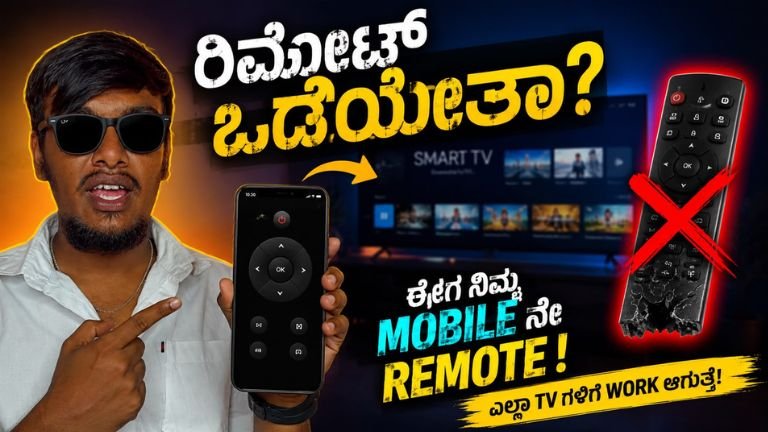
Turn Your Phone into a Virtual Remote
Using a directional pad on a physical remote to enter alphanumeric passwords or search queries letter-by-letter is slow and clunky. The mobile app completely solves this.
-
Connect your phone to the same Wi-Fi network as your Google TV.
-
Open the Google TV app on your phone.
-
Tap the TV Remote button in the lower corner.
-
Enter the 4-digit code shown on your TV screen to pair them.
Once linked, you can use a touch trackpad for navigation, access volume controls, and use your phone’s native keyboard to instantly type text on your TV screen.
Building a Universal Watchlist from Anywhere
How often do you read an article on your phone about a great new show, only to forget its title by the time you sit down in front of your television?
With Google TV, anytime you search for a show or movie on Google Search (on your phone, tablet, or desktop browser), click the “Watchlist” button beneath the search result. That title will instantly sync to your Google TV home screen under your Library tab, waiting for you when you log on later.
Part 4: Advanced Features and Customization Tricks
Once you have mastered the basics, you can tune your Google TV to make it faster, safer for children, and more tailored to your lifestyle.
1. Set Up Multiple Profiles (Essential for Families)
If you share a household, mixing your viewing history with kids or roommates will quickly ruin your personalized recommendations.
-
How to add a profile: Select your avatar in the upper right corner of the home screen, select + Add account, and log in with another Google Account.
-
Kids Profiles: You can create dedicated children’s profiles with age-appropriate content ratings filters, custom color themes, app lock limits, and bedtimes.
  ┌────────────────────────────────────────────────────────┐
  │                   WHO IS WATCHING?                     │
  │                                                        │
  │     [ Profile 1 ]        [ Profile 2 ]    [ Kid Profile ] │
  │        Alex                 Sarah            Leo 🔒    │
  │    (Personalized)       (Personalized)     (Restricted)│
  └────────────────────────────────────────────────────────┘
2. Enable “Apps Only Mode” for a Minimalist Layout
If you find the automated recommendations on the “For You” tab cluttered or distracting, Google TV includes a built-in clean layout mode.
-
Go to Settings (gear icon) > Accounts & Sign-In.
-
Select your account profile.
-
Toggle on Apps Only Mode.
Note: This removes algorithmic recommendations, video previews, and Google Assistant voice searches from your home screen, leaving only a clean grid of your installed applications.
3. Voice Commands with Google Assistant
Press and hold the Google Assistant (or microphone) button on your remote to speak directly to your TV. Here are useful phrase structures:
-
By Genre: “Show me sci-fi movies from the 1990s.”
-
By Actor: “Find movies starring Denzel Washington.”
-
Cross-App Search: “Where can I stream The Office?”
-
Playback Controls: “Fast-forward 5 minutes” or “Turn on English subtitles.”
-
Smart Home Integration: “Dim the living room lights” or “Show me the front door camera.”
4. Ambient Mode: Turn Your TV into a Digital Frame
When you aren’t actively watching content, Google TV’s Ambient Mode prevents screen burn-in and complements your room decor.
You can set Ambient Mode to cycle through:
-
Google Photos: Display private family holiday albums.
-
Art Gallery: High-resolution classical fine art, photography, and street art.
-
Experimental / Weather: Live clocks, weather forecasts, and satellite photography.
Part 5: Feature Comparison Guide
To help you decide how to use Google TV alongside other alternatives or setup configurations, refer to the breakdown below:
| Feature | Google TV OS (Smart TV / Dongle) | Google TV Mobile App | Standard Smart TV OS |
| Primary Goal | Big-screen content streaming & hub | Portable watchlist & remote controller | App launcher for TV screens |
| Search Functionality | Universal voice & cross-app search | Mobile text search & browsing | Often app-by-app searching |
| Watchlist Sync | Automatic sync across Google account | Instant browser-to-app bookmarking | Rare / App-dependent |
| Free Live Channels | Hundreds built-in out of the box | Browse titles on the go | Varies by manufacturer |
| Smart Home Control | Native Google Home / Matter hub | Uses phone smart home controls | Limited |
Troubleshooting Common Google TV Issues
Even the best platforms encounter occasional hiccups. Here is how to quickly resolve the most frequent issues:
Issue 1: Mobile App Remote Won’t Connect to the TV
-
Cause: Your phone and TV are likely connected to different Wi-Fi bands (e.g., phone on 5GHz and TV on 2.4GHz) or a guest network.
-
Fix: Open network settings on both devices and verify that they are connected to the exact same Wi-Fi network name (SSID). Reboot your Wi-Fi router if the TV still fails to register.
Issue 2: Sluggish Interface or Stuttering Apps
-
Cause: System cache memory is full, or too many background processes are active.
-
Fix: Navigate to Settings > Apps > See all apps. Select heavy apps (like YouTube or Netflix), select Clear Cache, and return to the main menu. Alternatively, restart the system via Settings > System > Restart.
Issue 3: Content Recommendations Are Inaccurate
-
Cause: The recommendation engine needs better signal data on what you like, or someone else watched shows under your profile.
-
Fix: Ensure all family members use their own designated user profiles. Go to Settings > Accounts > Content Preferences to explicitly re-select your preferred streaming services and genres.
DownloaD
Google TV fixes the biggest frustration of modern streaming: fragmentation. Rather than forcing you to remember which movie lives on which app, it puts content front and center.
When you pair the on-screen interface with the mobile app’s virtual keyboard and universal watchlist, you get one of the most intuitive, feature-packed home entertainment setups available today.